Setup MFA with Microsoft Autheticator App
When you launch a Microsoft Office App for the first time, you will be prompted to authenticate.
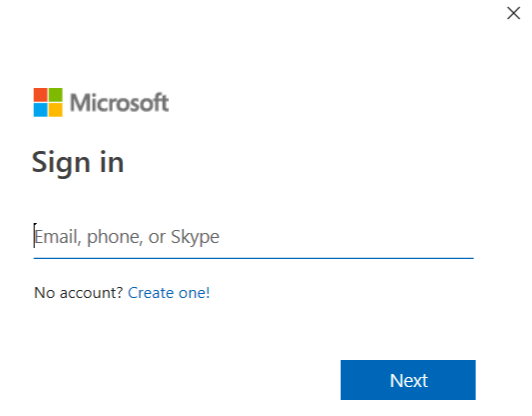
- To setup MFA, sign in with your work email in the prompt that pops-up. Then, click on "Next".
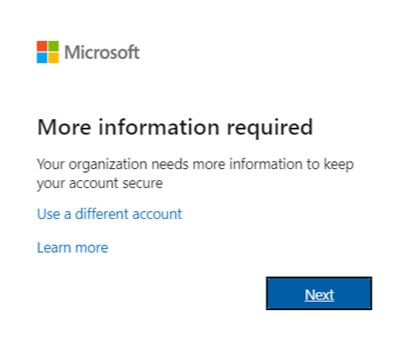
- Select "Next" when you see "More information required".
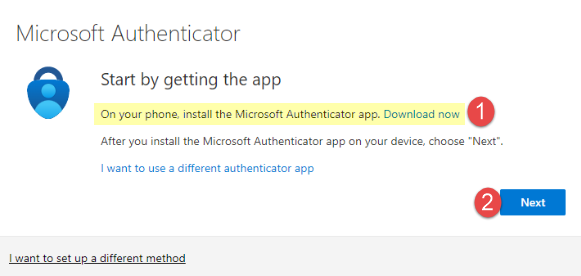
- You will receive a prompt to download the Microsoft Authenticator app on your iPhone or Android device. Once you’ve downloaded the Microsoft Authenticator app on your mobile device, click "Next" on your computer.
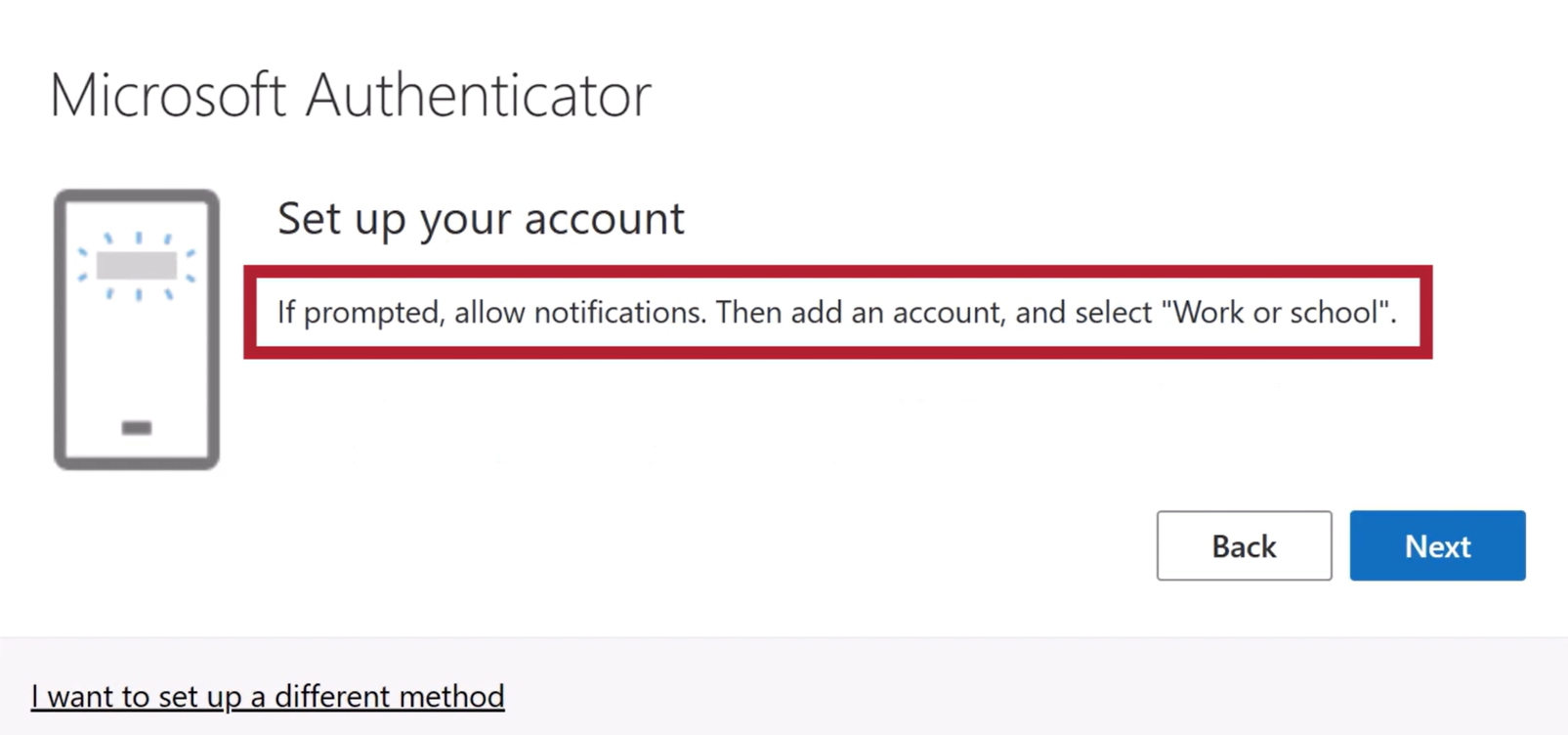
- You will receive the following prompt on the computer instructing you to launch the MFA app on your mobile device. Click on "Next".
- Follow these steps on your mobile device:
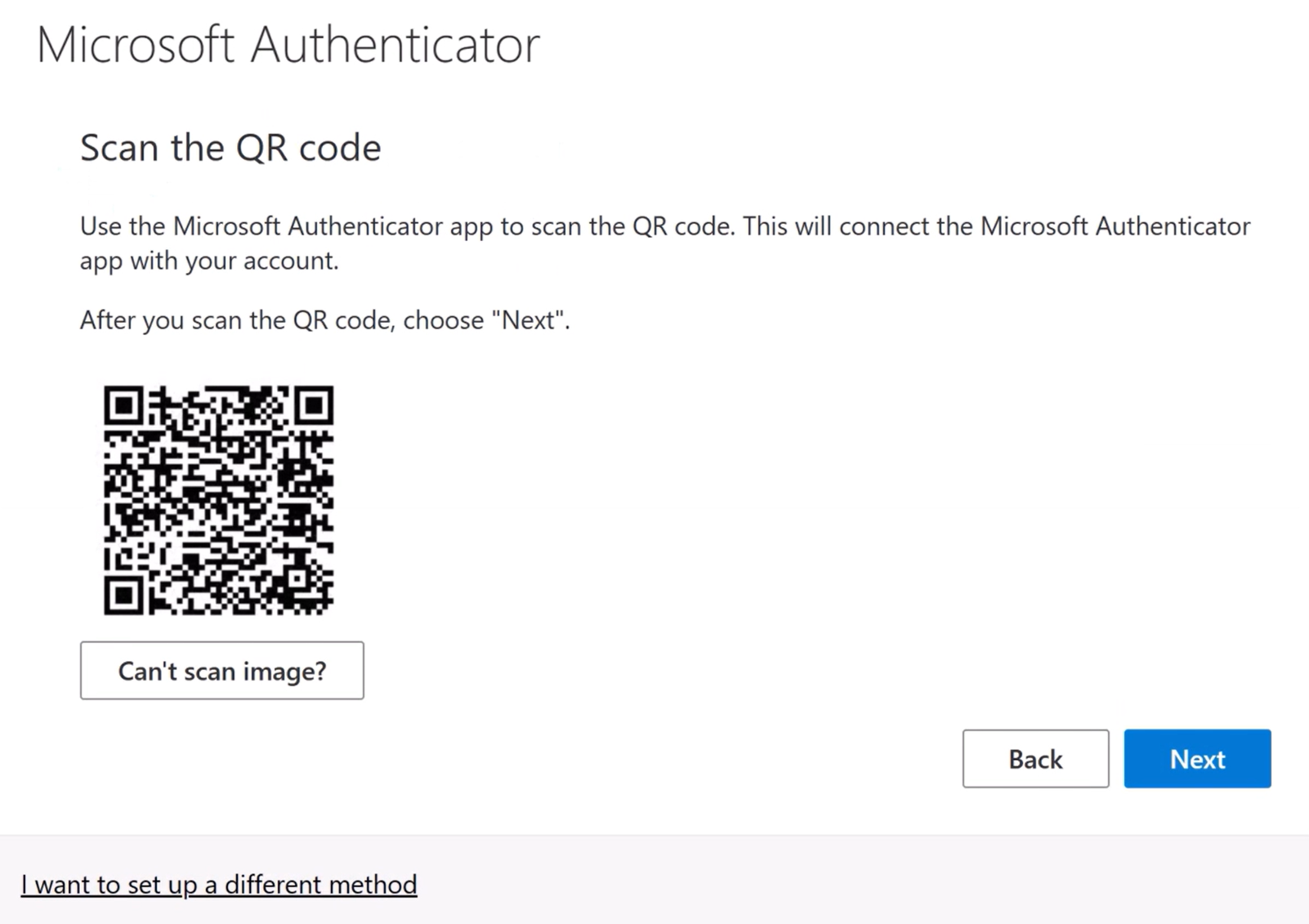
- Click "Next", once you've scanned the QR code on your phone. (Similar to the image below)
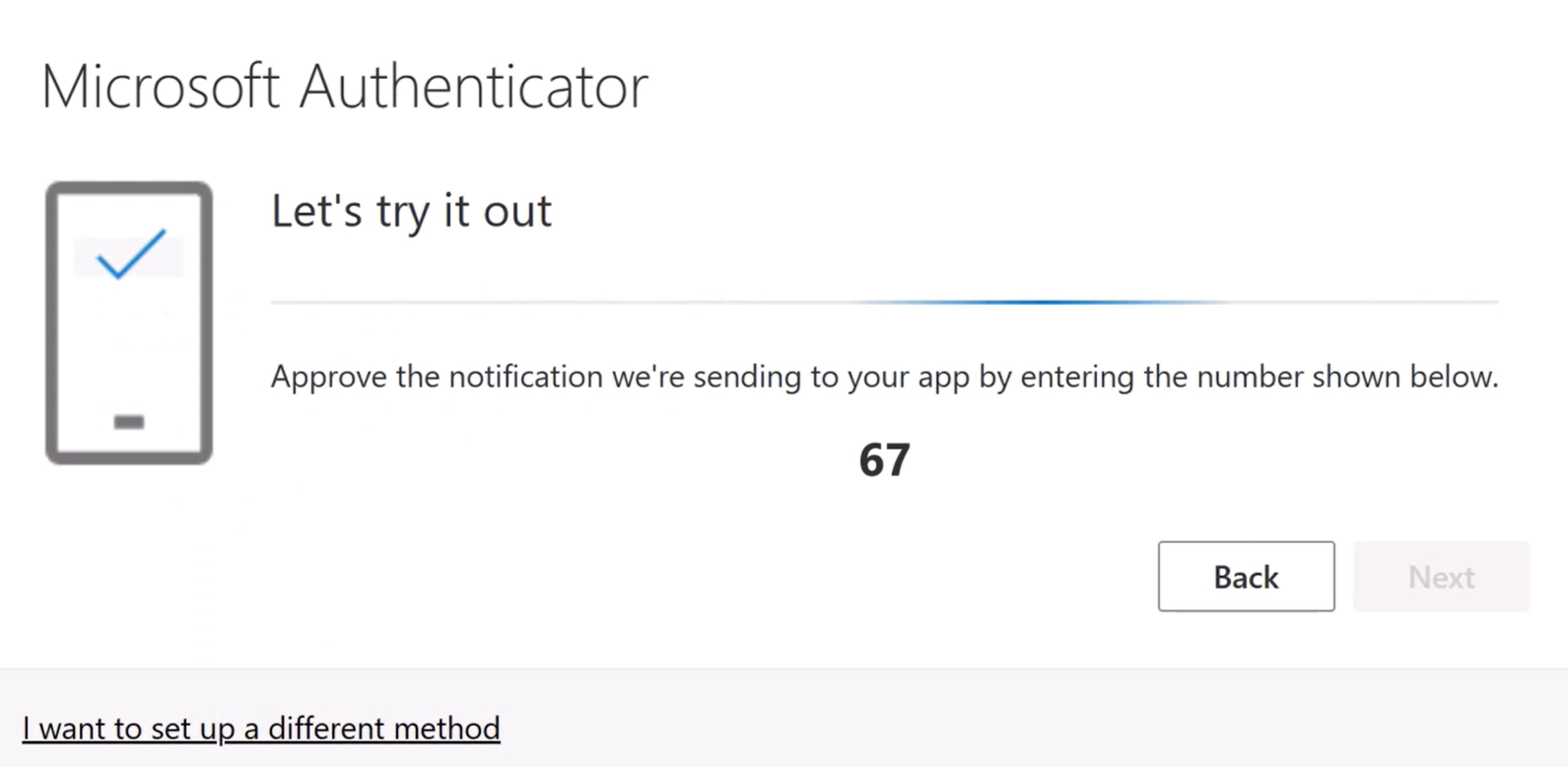
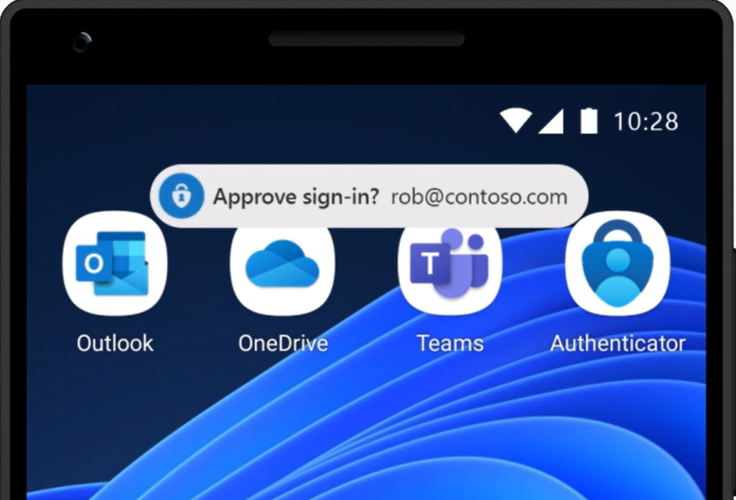
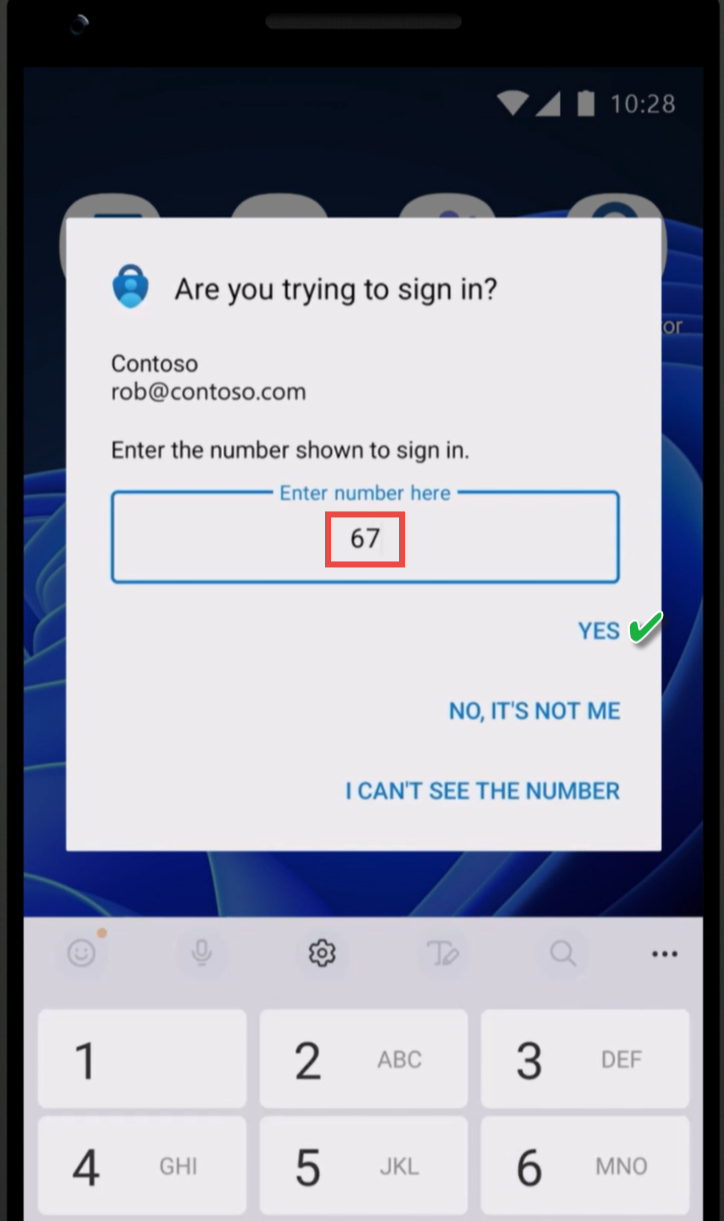
- A randomly generated number will be displayed on your computer. Enter the number you see on your computer into the Microsoft Authenticator app on your phone. (See the images below)
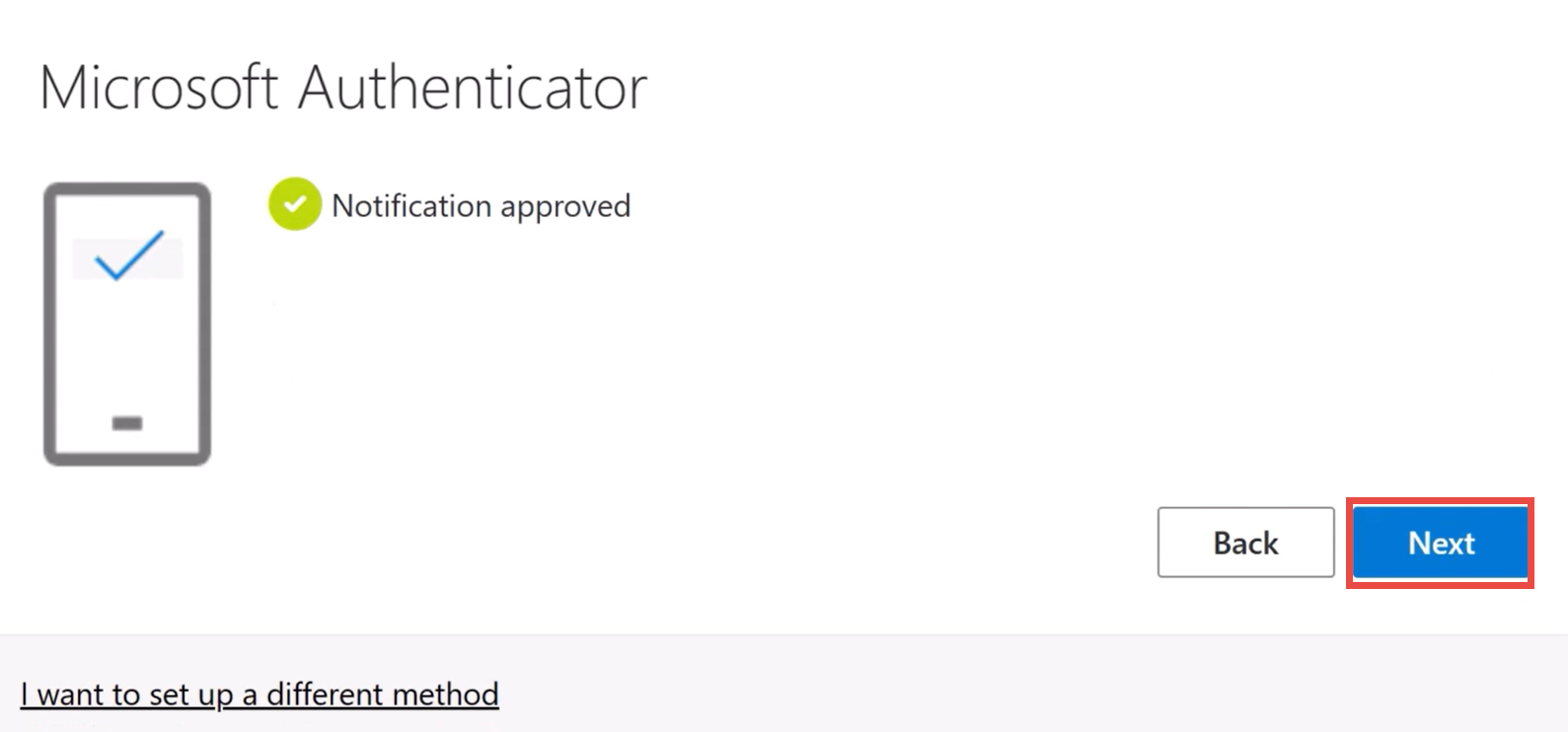
- Once you completed verifying your sign-in, you’re enrolled successfully in MFA. Click "Next" to complete setup.
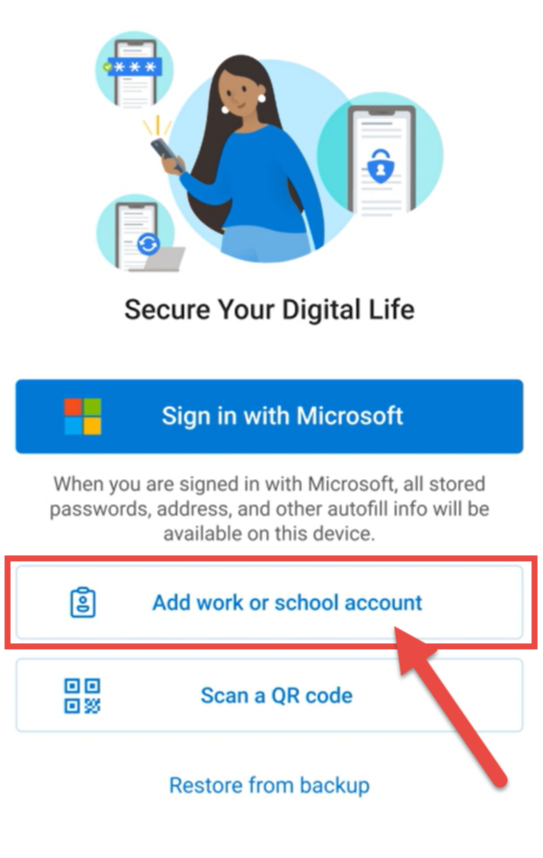
a. Select Add work or school account.
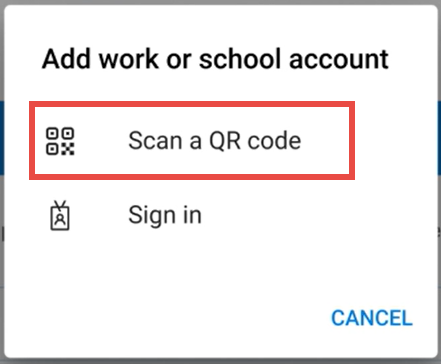
b. Select Scan a QR code.
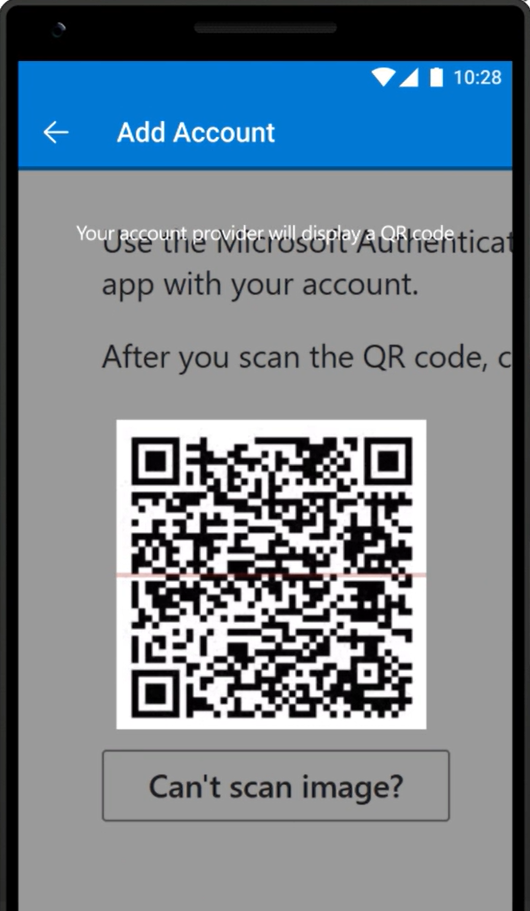
c. Scan the QR code display on your computer screen
On your mobile device:
NOTE: If you’ve changed your phone or removed the Microsoft Authenticator app and need to set it up again, please reach out to Culligan IT for assistance.