Signing In To Your Laptop
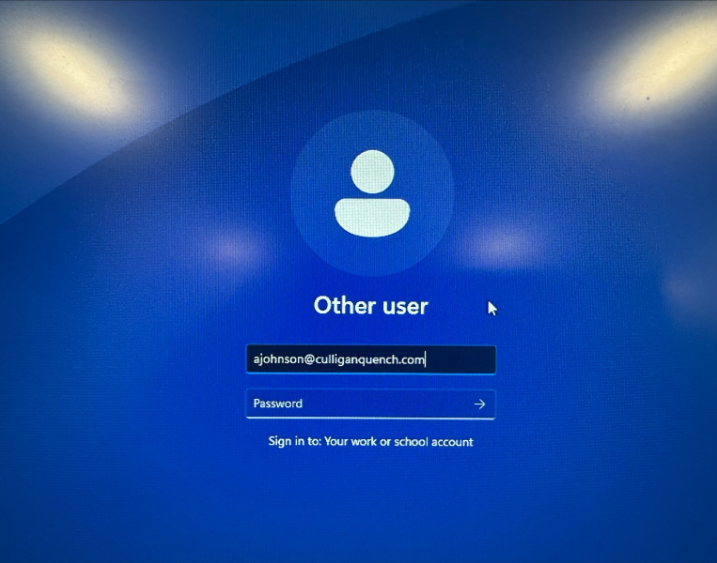
Use the Other user option on the bottom left-hand corner of the login window. For the Username field, type in your new culliganquench.com email and your current password for your account.
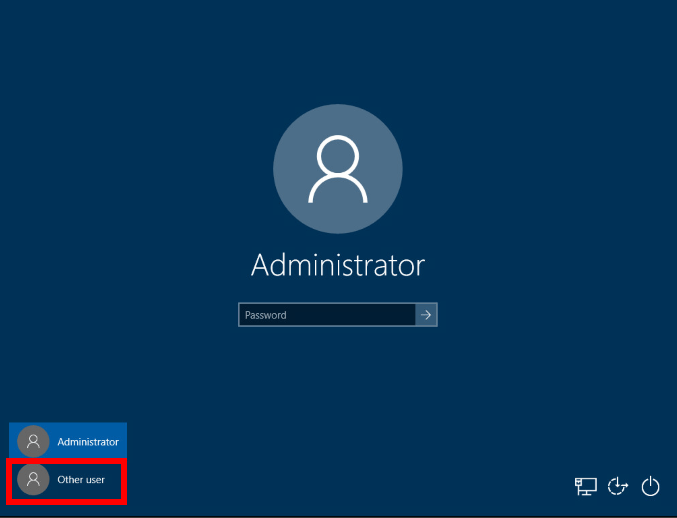
Your sign in ID will be your new @culliganquench domain address and the password is what you would use to sign into your Office 365 accounts that you use to access Outlook, Word, Excel etc.
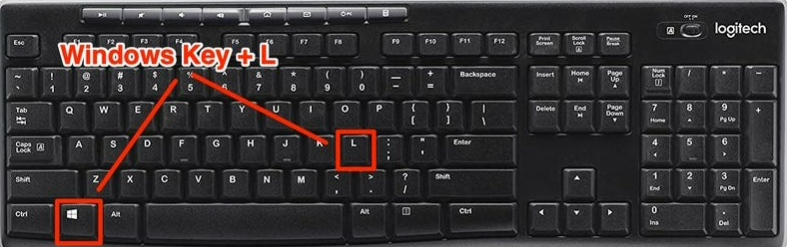
Once you are signed in and at your local desktop screen where your desktop icons, apps, and other shortcuts will be hold the Windows key down on your keyboard and press the L key. This will lock your screen and bring you back into the login screen you just signed in with.
You will then login again with the password you just used to cache your credentials locally in Windows to ensure that it is store, remembered, and that you are able to log in and out of your laptop successfully.
PLEASE NOTE: Before attempting any sign in at the login screen double check to make sure you are connected to the wireless network at your work or home location by checking for the Wi-Fi symbol at the bottom of the lock screen. If you see this symbol below, this means you are not currently connected to any wired or wireless network and windows will attempt to use whatever password was cached and working locally from the last login session.